Data transfer
XL3 offers several ways to transfer the stored measurement data:
MTP (Media Transfer Protocol) over USB-C
The instrument is connected directly to the computer using a USB cable. The instrument then acts like a thumbdrive and folders and files can be accessed directly with drag and drop.

|
Please note that software running on the computer cannot directly access the instruments data via the MTP protocol. Therefore, copy the measurement data to your computer prior accessing them by SW. MTP is not supported by MacOS. |
Remote access via XL3 website
You will find detailed instructions on how to activate the web server and how to transfer the data of the XL3 in this mode to your PC at Remote control via web server.
SFTP access
Free choose any of the availble sFTP Client software like WinSCP, FileZilla or WatchFTP for accessing the stored measurement data. The neccessary parameter are:
| Parameter | Value |
| File Protocol | SFTP |
| Target address | IP-addresse of the XL3 |
| Port | 22 |
| User | sftp |
| Password | Password of the WebServers |
If you are accessing the instrument via NTi Connect, the parameter are:
| Parameter | Value |
| File Protocol | SFTP |
| Target address | connect.nti-audio.com |
| Port | 22 |
| User | Connect key (XXXXX-XXXXX) |
| Password | Password of the WebServers |
How to connect a router or gateway
A router can be connected directly to any USB port of the XL3 if it supports the NDIS protocol. The Teltonika router TRB140 suits this application very well.
Routers, like the Teltonika RUT240, not supporting NDIS protocol, shall be connected via an Ethernet connection using a recommended USB to Ethernet adapter.
|
|
Please note that the Teltonika gateway TRB140 cannot be operated in USA, Japan and China due to missing approvals. Alternatively you may then use the Teltonika RUT240 router as it has worldwide approvals. |
Remote control via web server
Once you have activated the internal web server, you can connect your XL3 to the Internet and both remotely control the device and download measurement data during operation.
Activate the web server
Under System Settings and Connections (described under Commissioning), setting an individual password enables the web server.
|
|
To access the XL3 via a network, there must be an active network connection ( After that, you can remotely control the XL3 from any HTML-enabled device. |

 ) and the web server must be active. The LED can be yellow, blue or white.
Response of the device in the internal network
If the meter is connected in the same sub-net as the query computer, you may access the meter via the internal IP address, since in this case there is no firewall in between.
- Select your preferred web browser (e.g. Chrome, FireFox or Edge) and type in the IP address (e.g. 192.174.xxx.xxxx) of the network connection of the XL3. You will find it in the current network settings of the XL3.
Addressing the device from an external network
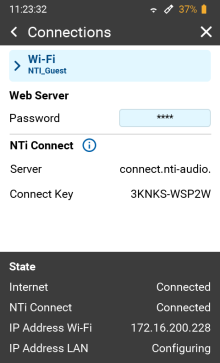
If the device is connected to the Internet somewhere, the internal IP address of the measuring device is usually not visible, because one or more firewalls are connected in between. In this configuration you may establish connection via the connect.nti-audio.com service that is free of costs for fair use.
|
Each XL3 has a unique key that can be used to address it from the Internet. You will find this described under System Settings and Connections in the chapter Commissioning.
|
Access to NTi Connect service
The NTi Connect service connect.nti-audio.com provides worldwide and secure access to the webpage, data files and APIs of XL3s.
-
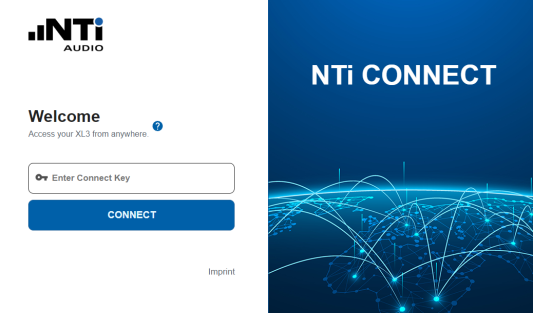
Open a browser and type connect.nti-audio.com.
A web page opens
-
Now type in your Connect Key key and click connect.
XL3 uses port 22 to communicate to the NTi Connect Server.
The NTi Connect Server now creates the connection via the server and connects your PC to the device. The XL3 will then automatically provide you with its web server page.
-
XL3 web server
|
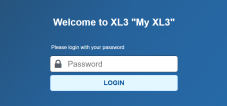
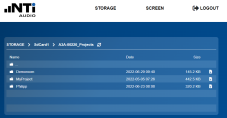
The web page will prompt you to enter the password previously defined in XL3. After that the overview screen of the web server opens. |
|
You now have direct access to all measurement data stored in XL3 and can download each individual file. In the top menu, you can access the live screen of the meter via SCREEN. |
|
|
The use of the NTi Connect service requires that all data traffic to and from XL3 is handled via the server. NTi Connect provides free usage for data volumes up to 2 GB per month. For data consumption beyond this threshold, the download speed will be reduced. Opting for the "NTi Connect Open Data 365" subscription ensures uninterrupted communication at full speed. |
Remote control via the web user interface
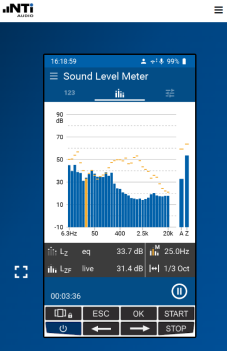
|
You can now control the device remotely with the mouse - just as if you were working directly on the device. If the screen of the web interface is touch-sensitive, you can also use this touch screen for the operation. The website is responsive; i.e. it can be scaled as desired. The |
 icon scales the device screen to the maximum screen size. You can exit this mode at any time by pressing ESC on the PC keyboard.
Fair Use Principle for NTi Connect
Free Data Volume
Monthly, NTi Audio provides a free data volume of 2 GB to each XL3 device on the Connect Server (connect.nti-audio.com). Within this data volume, the typical data transfer rate is 1 to 4 MBytes/s as long as any mobile connection does not limit the rate. The consumed data volume can be found in Connections.
Throttling upon Exceeding
Once the data volume is exceeded, the transmission rate of the XL3 is throttled to about 40 KBytes/s. This throttling is lifted on the first day of each new month, and the data volume starts counting anew.
Effects of Throttling
Despite throttling, remote control of the XL3 via the browser remains feasible. Additionally, downloading reports and short log files continues to function. However, during a download, the browser user interface responds only with limitations. Significantly more pronounced limitations occur during the transmission of large log files and audio recordings, as well as when using the Streaming API. This may lead to longer waiting times or even timeouts.
Recommended Option
To circumvent these limitations, we recommend acquiring the “NTi Connect Open Data 365” Option. This option removes the throttling of the transmission rate.
File Push Service
The File Push Service transfers files directly to the target server. Data usage isn't counted towards NTi Connect, and there's no throttling applied.
Reserved Rights
We reserve the right further to restrict the fair use of the Connect Server.